Setup guide
Connect Google Search Console
Connect a Google Search Console site to SignalBraid from the app, step by step, and what to expect afterwards.
This guide takes you through connecting Google Search Console sites to a SignalBraid workspace with the Add connection flow in the app. It describes the screens as they are built. You can connect it from the app by invitation, in the pilot; SignalBraid is invite-only, so you need an account first; see Known limitations.
Before you start
Section titled “Before you start”- A role that can connect. Only an Owner or an Admin of the workspace can add a connection.
- A Google account that can see the site in Search Console. SignalBraid lists the sites that account can access.
- Room in your plan. Your plan limits how many sources and accounts a workspace can hold.
The screenshots come from SignalBraid’s staging app on 19 November 2026 (First result, Destination and Done). They show the app as it was that day, labels included. Site names are hidden. The earlier steps look the same as in Connect Google Analytics 4, with Google Search Console chosen as the source.
-
Open Connections and choose Add connection. The flow has an Outcome step, a Source step, a Permission step, a Google step, an Accounts step, a First result step, a Destination step and a Done step.
-
Outcome. Say what you want to do with the data. You can add more outcomes later.
-
Source. Choose Google Search Console.
-
Permission. SignalBraid shows what it will ask Google for:
- View Search Console data and the list of sites you can access. This is a read permission; SignalBraid does not change anything in Search Console.
- Confirm which Google account you used. SignalBraid does not use your name, picture or email address for this.
The step says that the data is finalized daily data, checked at most once a day, on every plan. Choose Continue to Google, and confirm your identity first if the app asks.
-
Google. Sign in and approve the access on Google’s own screens. Google may show a warning that SignalBraid has not been verified yet. The warning is Google’s. You can check what is being asked on the next screen and remove access at any time.
-
Accounts. Choose which Search Console sites SignalBraid reads. Nothing is read from the others. Choose Connect.
-
First result. SignalBraid reads a first result and shows it with the date it runs through, the time zone its dates are in (Pacific Time, see below) and any limitation. If Google returned nothing for the period, the page says so rather than showing a zero. Choose Continue to turn the connection on.
The screenshot was taken with a test site on staging, so its figure of 2 clicks is not an example of what to expect; your first result shows what Search Console reports for your own site.
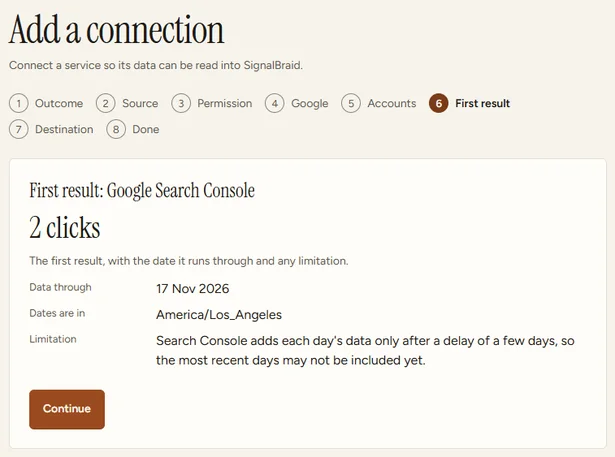
-
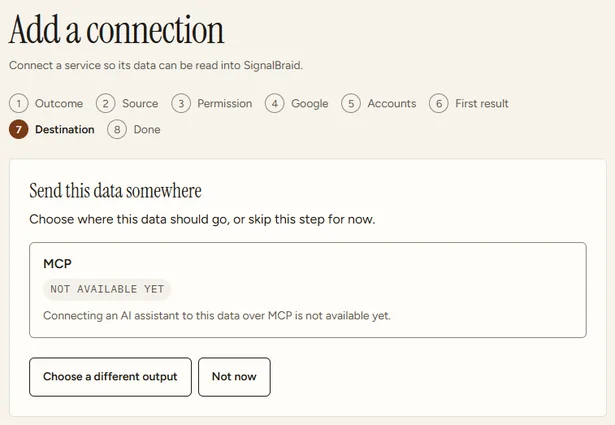
Destination. Choose where the data should go, or choose Not now. The step has a card for Google Sheets, for the REST API and for MCP. If you chose an outcome on the first step, only its card is shown at first; choose Choose a different output to see the others. For Search Console, the Google Sheets card says that Google Sheets outputs are not available for this source yet, and MCP is marked Not available yet.
-
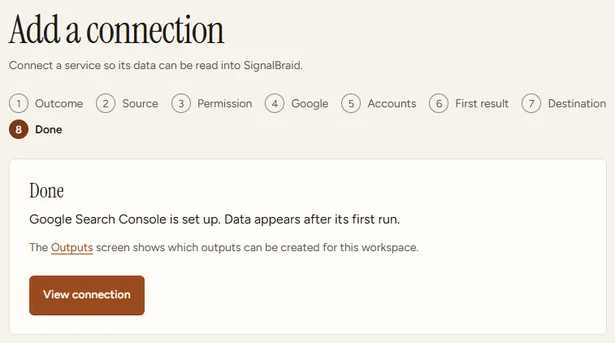
Done. The connection is set up. Data appears after its first run. The step links to the Outputs screen.
What arrives, and when
Section titled “What arrives, and when”- What. Two daily results: the site’s clicks, impressions, click-through rate and average position for each day, and the same for each page URL Google attributes data to. They come from the Search Analytics API, for web search, as finalized data only.
- Days are Pacific Time. Search Console reports on Pacific Time calendar days, not on your own time zone.
- When. Finalized daily data, checked at most once a day, on every plan. A day appears after Google has finalized it, so the newest days are not there yet. A query asks for 1 to 28 days at a time.
- Pages do not sum to the site. Google leaves some detail out of page rows, so page rows do not add up to the property totals. Use the site result for totals.
- Revisions. Google may revise recent data after it was read, and the result carries that as a limitation flag.
If something goes wrong
Section titled “If something goes wrong”| What you see | What it means | What to do |
|---|---|---|
| Nothing was connected | The Google step was cancelled, declined or timed out. | Try again. |
| This Google account has no sites it can read | The account has no Search Console site it can read. | Use another account, or ask a site owner to add you in Search Console. |
| No figure is shown for a period | Google returned nothing for it. | None; SignalBraid shows no zero for missing data. |
| Plan limit reached | The plan holds no more sources or accounts. | An Owner can compare plans. |
Remove access
Section titled “Remove access”Disconnect the connection in SignalBraid, or remove SignalBraid’s access in your Google Account. See Connect Google Analytics 4 for what each does.
Limits to know
Section titled “Limits to know”Read Known limitations first. The field catalogue lists the objects and fields.